Add a project to a page
What your page is built with decides how to add a project: LayerSlider’s block in the block editor, widget in Elementor, or module in Divi 5. A shortcode works almost anywhere you can enter text.
On this page
Choose the way that fits your page
Find the place where your project goes, and follow the link in its row for the steps. A page builder is a plugin for designing pages visually. A project’s shortcode is a piece of text in square brackets that WordPress replaces with the project when it shows the page.
| Where the project goes | What to do |
|---|---|
| A page in the block editor | Add the LayerSlider block with Block Inserter, the + in the top left corner of the editor, and choose the project |
| A page in Elementor | Drag the LayerSlider widget onto the page |
| A page in Divi 5 | Add the LayerSlider module in Divi’s Visual Builder |
| A page in Divi 4 | Paste the project’s shortcode into a Text or Code module |
| A page in another page builder | Use its own LayerSlider element, or the shortcode |
| A page in the Classic Editor | Click Add LayerSlider in the editor’s toolbar |
| A sidebar, the footer, or another widget area | Add the LayerSlider block or widget to the area |
| A theme’s PHP template | Call the layerslider() function |
| Most other places where you can enter text | Paste the project’s shortcode |
To tell WordPress’s two editors apart, open the page for editing. The block editor, which builds a page from blocks, has the + at the top, and the Classic Editor has a Visual tab above its toolbar.
Add a project in the Classic Editor
In your WordPress admin, open the page for editing.
The page opens in the Classic Editor.
On the Visual tab, click in the text where the project is to appear.
Click Add LayerSlider, LayerSlider’s icon in the first row of the toolbar.
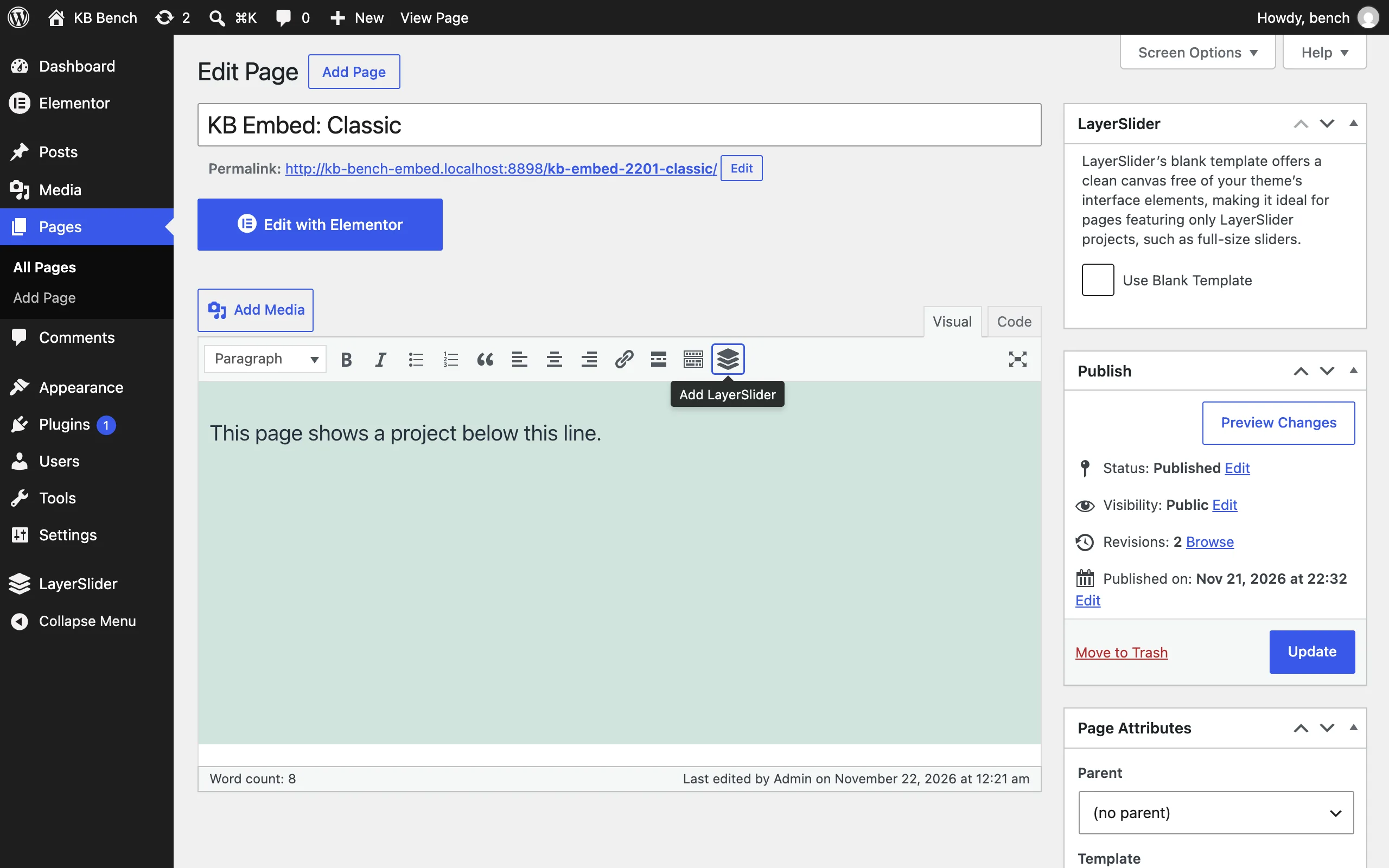
Add LayerSlider is LayerSlider’s icon in the first row of the toolbar. - Add LayerSlider
The Choose Project window opens.
Choose the project.
The project’s shortcode stands in the text where you clicked.
Click Update, or Publish on a new page.
Open the page in a new tab.
The page shows the project as you last published it in the Project Editor, so changes you’ve only saved show on the page after you publish them.
Add a project to a widget area
To show a project in a sidebar, the footer, or another area that your pages share, add it to a widget area. If the Appearance menu has Editor instead of Widgets, your theme has no widget areas: add the LayerSlider block to a part that every page shares, such as the footer.
In your WordPress admin, go to Appearance › Widgets.
The Widgets page opens with your theme’s widget areas.
Click the widget area where the project is to appear.
In that area, click the + and enter
LayerSliderin the search field.Two entries named LayerSlider appear: the block, with LayerSlider’s icon, and the widget, with a plain widget icon.
Click the block.
In the block, click Project Library.
The Choose Project window opens.
Choose the project.
Click Update.
Open your site in a new tab.
The area shows the project as you last published it in the Project Editor.
To show the project only on some pages, add the widget instead of the block. In the widget, choose the project in the Choose a project: list. Then enter the filters for those pages in the Optional filters: field, and click Update.
Other page builders
You can use LayerSlider in practically every page builder. Popular page builders, such as WPBakery Page Builder and Visual Composer Website Builder, have a LayerSlider element of their own.
If your page builder has no such element, paste the project’s shortcode into its text or shortcode element. If your page builder offers WordPress widgets, the LayerSlider widget works there too.
LayerSlider has its own block, widget, and module for the block editor, Elementor, and Divi 5: see the list of ways.
If the project is a popup
A popup doesn’t need a place on a page: it opens by itself. The popup’s Target Pages section decides which pages it opens on, and its Launch Popup section decides when it opens. Both sections are in Project Settings › Layout.
You can also add a popup to a page like any other project. The popup then opens on that page too, even if its Target Pages section leaves the page out.
Popups are included with a LayerSlider license. If your license isn’t registered on your website yet, register it.