Add a project in Elementor
In Elementor, the LayerSlider widget adds a project to a page. The project is chosen from the Project Library and plays on Elementor’s canvas as you design.
On this page
Add the LayerSlider widget
In your WordPress admin, open the page for editing.
At the top of the page editor, click Edit with Elementor.
The page opens in Elementor’s editor, with the list of widgets in its panel.
In the search field of Elementor’s panel, enter
LayerSlider.Drag the LayerSlider widget onto the page, where the project is to appear.
The Choose Project window opens.
Choose the project.
The project plays on Elementor’s canvas.
In the bar at the top of Elementor’s editor, click Publish.
The page shows the project as you last published it in the Project Editor, so changes you’ve only saved show on the page after you publish them.
To choose another project later, select the widget on the canvas and click Open Project Library in its Content section.
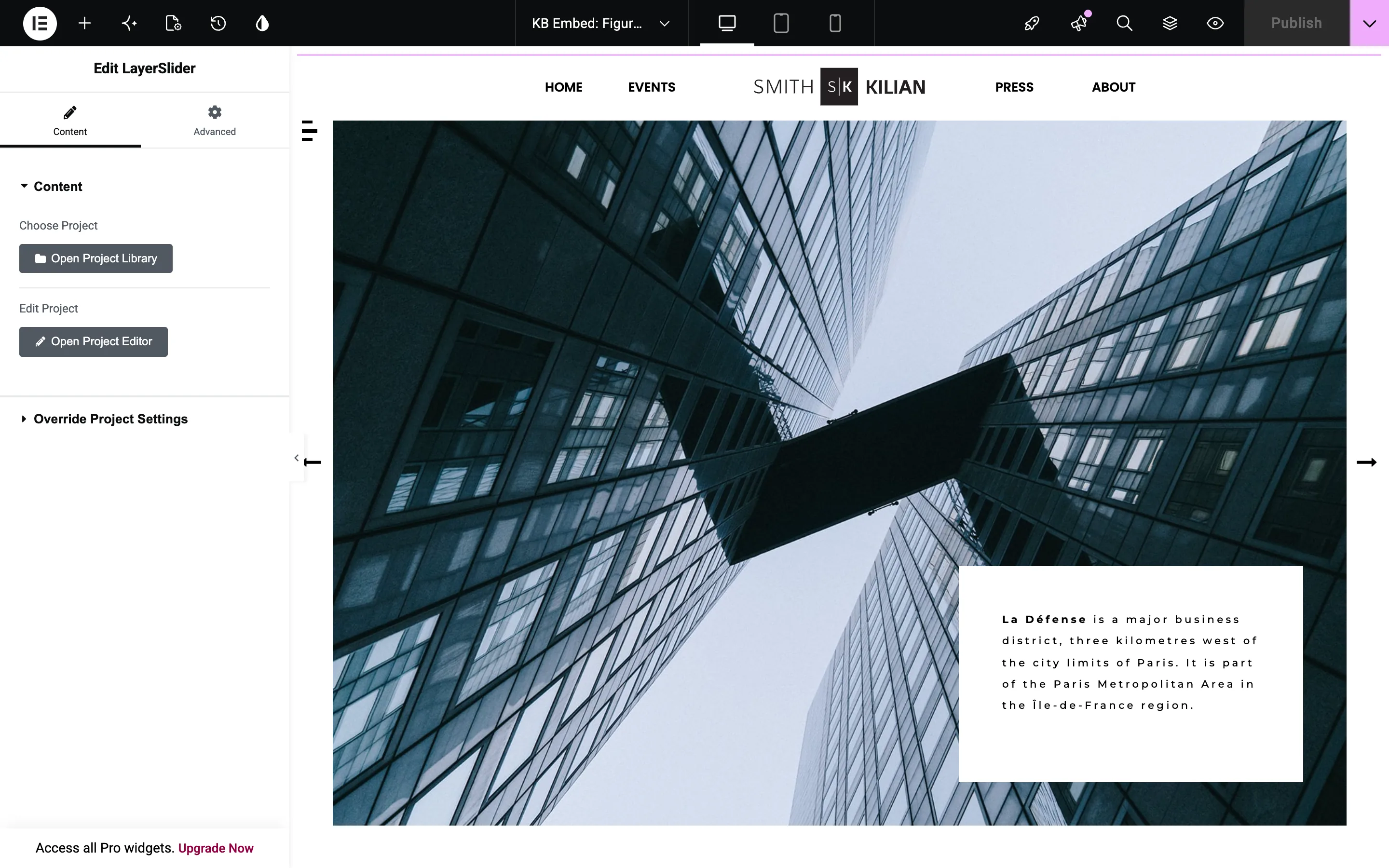
- The LayerSlider widget on the canvas
- Open Project Library
A popup project stands on Elementor’s canvas as a card instead of opening over the page. See where and when a popup opens.
Edit the project without leaving Elementor
If the project needs a change while you design the page, you can make it in the Project Editor right inside Elementor.
With the widget selected, click Open Project Editor in the widget’s Content section.
The project opens in the Project Editor, in a window over Elementor’s editor.
Make your change in the Project Editor.
Click Publish, in the bottom right corner of the Project Editor.
Close the window with the ×, in the top right corner of the screen.
Elementor’s canvas shows the project with your published change.
If you click Save instead of Publish, the Project Editor keeps your change as a draft, and Elementor’s canvas still shows the published project.
A change that you publish in the Project Editor changes the project on every page that shows it, without publishing the page in Elementor again. For another layout or behavior on this page alone, change some of the project’s settings.
Change the project’s settings for this page
If this page needs the project with another layout or behavior, the widget can change some of the project’s settings for this page alone. The project itself and your other pages stay as they are.
With the widget selected, expand its Override Project Settings section. Each list there starts at No override, and the Start with Slide field starts empty: both keep the project’s own setting. Change the settings that this page needs:
- The Layout list gives the project another layout on this page, for example Full Width to fill the width of the page.
- The Auto-Start Slideshow list decides whether the slideshow starts by itself on this page.
- The Start with Slide field takes the number of the slide that the project starts with on this page.
Elementor’s canvas shows each change as you make it, and visitors see it after you publish the page in Elementor.