Register your license
Registering connects a website to your license and makes everything the license includes available on that website. Enter your license key in the license box of the LayerSlider dashboard.
On this page
Register the license
You need your license key to register. If you don’t have the key at hand, see where to find it.
If LayerSlider came with your theme, the theme includes the plugin but not a license key: a key comes with a license of your own. See what that means and what you can do.
In your WordPress admin, click LayerSlider in the menu on the left.
The LayerSlider dashboard opens.
At the top of the dashboard, click License.
In the license box, enter your license key and click Register License.
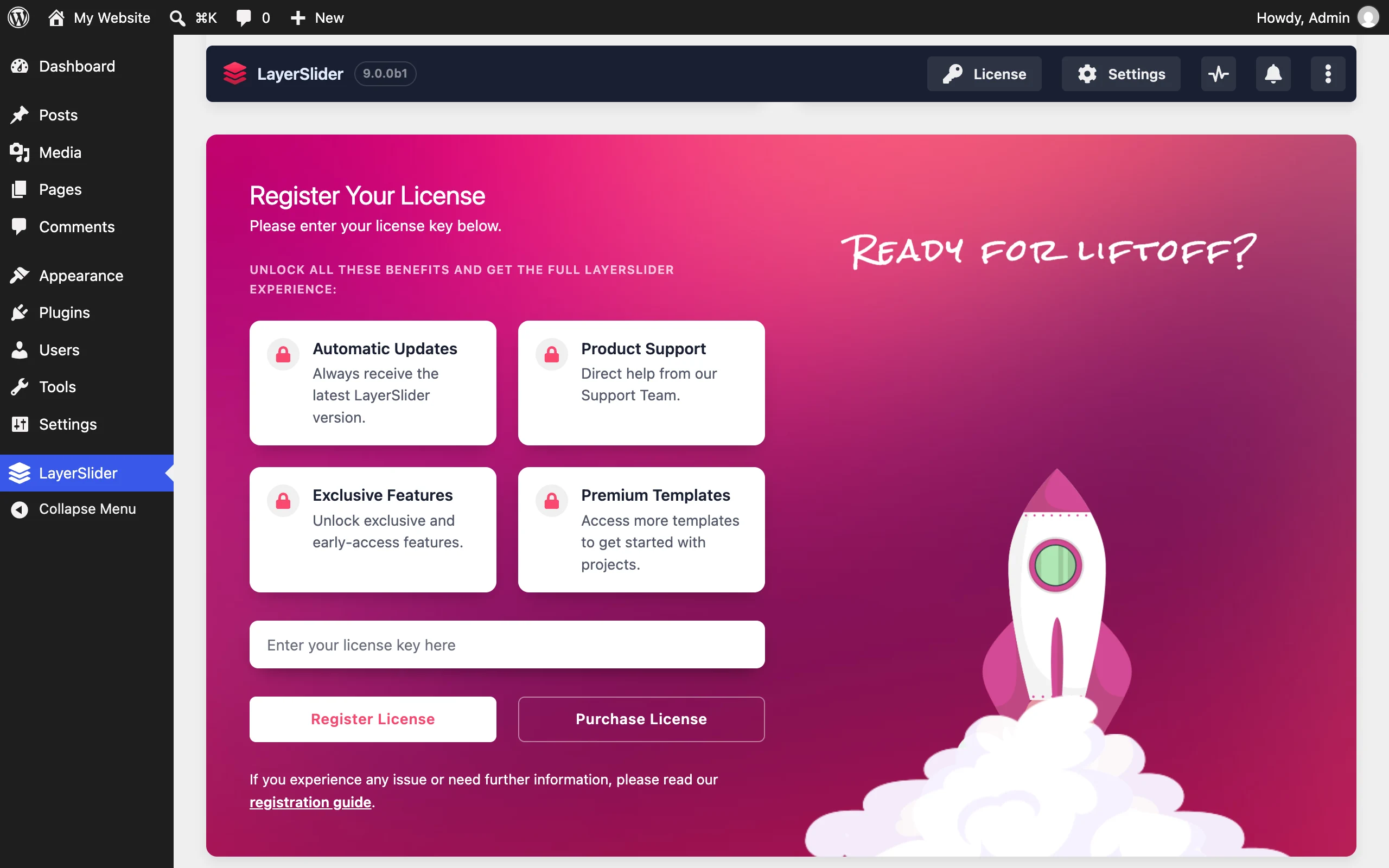
The field for your license key and Register License are in the license box. - License
- The field for the license key
- Register License
The box turns from red to purple, and its heading becomes Registered License.
If the key isn’t accepted
A window or an alert on the dashboard says why the key isn’t accepted:
- If the dashboard says the key isn’t valid, check that you entered the whole key and that no character is mistyped. Also check that it’s your LayerSlider license key, not the purchase code of a theme or the key of another product.
- If the license is already registered on all the websites it covers, move it from a website that no longer needs it, or choose a plan that covers more websites. If you aren’t sure whether two of your addresses are one website or two, see what counts as one website.
- If an alert begins with “An unexpected error occurred.”, try again later. If the alert keeps appearing, check your website’s connection to the license server.
- If an alert titled “Failed to Register Your License” appears, the registration failed on your website’s own server. Start troubleshooting to find the cause.
If the website already had a registered license, reload the LayerSlider dashboard after a key that isn’t accepted. If the license box is red, register the earlier key again.
If the key still isn’t accepted, contact support. Include the address of each website involved and the email address of your purchase.
What your license includes
On a website with a registered license, you can start projects from the premium templates, create popups, and use the add-ons, with their special effects and ready-to-use content. You also get the exclusive and early-access features, one-click or automatic updates of LayerSlider, and direct help from our support team.
The Premium page of our website shows what a license includes, from effects and templates to support and updates.
In LayerSlider, the Add-Ons & Premium tile of the dashboard opens a window that presents each add-on and premium feature, with examples to look at. In the same window, you turn on and set up the add-ons that have settings of their own, such as Revisions and Maintenance & Coming Soon.
When a website asks for its key again
If a website loses its registration, the LayerSlider dashboard shows the bar “Re-register your license key on this site”, and the bar’s What’s this? button explains why. Register the key again in the license box, with the same steps as a first registration.
If the dashboard shows the bar “Your subscription has expired” instead, your plan has ended. To use LayerSlider with a license again, choose a plan on the pricing page and register its new license key.